
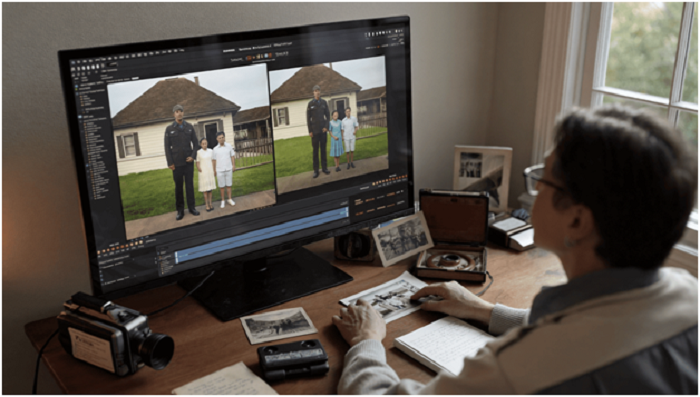
Almost every military family has a shoebox of memories. Deployment homecomings recorded on a camcorder, a graduation ceremony filmed from the back row, a unit picnic shot on a phone that has long since been replaced. Many of these clips were captured at low resolution, saved in old formats and copied several times, so they now look soft, flickery and faded.
These videos matter. They are family history, and for veterans and their relatives they often hold the only moving record of a person or a moment. Preserving them is a worthy project, and new tools have made the cleanup part far less technical than it used to be. An AI Video Editor lets you describe the fix you want in plain language rather than working through a timeline. Higgsfield AI is a native AI creative suite, which offers advanced AI image, video, and voice generation, editing, and upscaling tools. This guide explains how families, veteran groups and local historians can use it to clean up old footage responsibly.
Why Is Old Family and Unit Footage Worth Preserving?
Physical media does not last forever. Tapes degrade, discs scratch and files get lost when devices are replaced. Memorials and monuments are cared for because communities understand that history needs upkeep, a point made in recent coverage of a campaign to restore a vandalized Iwo Jima monument. Personal archives need the same care on a smaller scale.
There are practical reasons to act soon.
Memories fade with the people who hold them. A voice on a tape can name every person in a photo. Once those people are gone, the context is gone too.
Formats become hard to play. Old camcorder tapes need old equipment. Digitising them early keeps them accessible.
Families want to share. A reunion, a memorial service or a retirement ceremony is a natural moment to show a clip. A clearer version is easier for everyone to watch.
Veteran groups and historians need material. Local museums, post newsletters and oral history projects benefit from footage that people can actually see.
What Problems Do Old Videos Usually Have?
Before choosing any tool, it helps to know what you are fixing.
- Low resolution. Older cameras captured far fewer pixels than modern screens display, so clips look soft when enlarged.
- Flicker. Uneven lighting, aging media or conversion can cause brightness to pulse.
- Choppy motion. Some old files have low or uneven frame rates.
- Distracting overlays. Date stamps, timecodes or camera icons burned into the picture.
- Wrong shape. Square or four by three footage that looks small on a widescreen display or does not suit a phone.
- Language barriers. Footage from overseas postings may include speech in another language that relatives cannot follow.
None of these can be reversed perfectly, but several can be improved a lot.
What Does Higgsfield’s AI Video Editor Offer?
According to the live product page, the editor works with plain language instructions and no timeline, and it handles your own clips as well as generated ones. These are the features most relevant to archive work.
Upscale. Footage can be raised to 1080p, 2K or 4K, with output from 24 to 60 fps and presets to guide the result. For a soft clip headed for a big screen, this is the central tool.
Video Deflicker. This targets the pulsing brightness that appears in aging or converted footage.
FPS Boost. For clips that look choppy, FPS Boost is designed to smooth movement.
Object removal. You describe an element, such as a burned in date stamp or a stray object, and Higgsfield removes it from the clip.
Auto Reframe. Higgsfield converts between 16:9, 9:16 and 1:1, so one recording can become a widescreen version for a memorial slideshow and a vertical clip for a phone.
Dubbing. The page lists dubbing in 18 languages with lip sync. For footage with speech in another language, that could help relatives follow the conversation, with the caution that translations should be checked by a fluent speaker.
Style and scene changes. The editor also lists restyling and background swaps. For archive work these are generally best left alone, for reasons covered below.
The page does not state pricing, processing times or hardware needs, so check Higgsfield’s site for current details before you plan a big project.
How Do You Prepare Old Footage Before Editing?
A little preparation protects the original and gets better results.
- Digitise first. If the footage is on tape or disc, convert it to a digital file with a reliable service or your own equipment. Higgsfield works with digital clips, so the file comes first.
- Make copies. Keep an untouched master file and work on a copy. Never edit your only version.
- Label everything. Note the date, place, people and event for each clip. A spreadsheet is enough.
- Choose the best source. If you have two versions of the same clip, start with the sharper one.
- Trim to the good parts. Cut dead air and shaky openings so you only process footage you will keep.
How Do You Upscale an Old Clip?
Here is a simple, repeatable process.
- Open the clip in Higgsfield. Start with a short segment to test.
- Fix flicker first. Run Higgsfield’s deflicker before any other step so the later steps work on a steadier picture.
- Remove burned in overlays. Describe the date stamp or icon and let the editor remove it. Check the area carefully afterwards, especially if the camera moves.
- Upscale. Choose a target resolution and a preset. For most family videos, 1080p is plenty, and 4K is worth it only if you will watch on a very large screen.
- Adjust the frame rate. Use FPS Boost if motion looks choppy, and compare against the original.
- Reframe if needed. Create a vertical version for phones if relatives will share the clip on social media.
- Review the whole clip. Watch from start to finish before saving.
Always keep the original. If a processed version looks wrong, you can return to the master and try again.
What Can AI Upscaling Not Do?
Honest expectations matter. An upscale can make a clip look cleaner, sharper and better suited to modern screens, but it cannot recover detail the camera never recorded. A face that was a few blurry pixels in the original will not become a perfect portrait.
Be careful with faces in particular. If an upscale appears to change someone’s features, that is not restoration, it is invention. Compare the processed face with the original and with known photos. If it looks like a different person, stick with a gentler setting or leave that clip as it was.
Should Historical Footage Be Altered at All?
This is the question serious archivists ask, and it deserves a clear answer.
For personal and family clips, light cleanup is reasonable. Reducing flicker, improving sharpness and fixing the shape of the frame make a memory easier to share.
For historical or documentary use, be transparent. If footage will appear in a museum display, a local history project or an oral history archive, label any processed version as enhanced and keep the original available.
Do not change what happened. Restyling, background swaps and similar edits can alter the historical record. For archive material, avoid them. The goal is to see the past more clearly, not to rewrite it.
Respect the people in the footage. Some clips show moments that were private or painful. Think about who will see the video and whether the people shown would be comfortable with it.
What Does a Small Archive Project Look Like in Practice?
A realistic plan keeps the project manageable. A family with twenty old clips might spend one weekend digitising and labelling, a second weekend processing the five most important ones in Higgsfield, and a third weekend sharing them at a reunion or in a private online album.
Starting with the clips that matter most builds confidence and gives early results. Over a few months, the rest of the collection can follow, one or two clips at a time. The aim is steady progress, not a perfect archive in a single sitting.
How Do You Share Restored Footage?
Once a clip is ready, there are several ways to share it.
Family screenings. A memorial service, reunion or anniversary is a good time to show a restored clip.
Digital albums. Store the processed files alongside the originals in a labelled folder, and back them up in at least two places.
Veteran groups and posts. Newsletters and websites can feature a clip with a short caption naming the people and the event.
Local museums and historical societies. Many welcome donations of footage. Ask about their requirements for format and labelling first.
Before you post anything online, get permission from the people shown, especially in clips that include children or people who may not want their service history public.
Can the Same Approach Help With Other Projects?
The same steps work well beyond family archives.
Unit and association histories. A post or association can gather old ceremony footage and improve it for an anniversary video.
Commemorative videos. Memorial tributes often rely on older clips of mixed quality, and consistent cleanup makes them feel cohesive.
Oral history projects. Interview footage recorded on older equipment can be made clearer and easier to caption.
Community outreach. A short, polished video about a local veteran organisation helps recruit volunteers and donors.
What Mistakes Should You Avoid?
Editing the only copy. Always work on duplicates.
Over processing. Maximum settings in Higgsfield, or any tool, can make footage look artificial. A natural look often serves a memory better than a glossy one.
Skipping the test clip. A short sample shows whether a preset suits your footage before you commit to the whole video.
Forgetting captions and labels. A clean clip without context loses much of its value. Add names, dates and places.
Ignoring permissions. Check before sharing footage of other people, and avoid anything that reveals sensitive or private details.
Expecting a miracle. Some clips are simply too damaged. Preserve them as they are and enjoy them for what they are.
What Are the Limits to Keep in Mind?
The quality of the result depends on the quality of the source. Heavily damaged footage, very dark scenes and fast motion are the hardest cases. Results vary between clips, and a setting that works for one may not suit another.
The Higgsfield product page does not list hardware requirements, processing times or prices. Families on a budget should check Higgsfield’s site for current plans and try a short clip first. For footage of real historical importance, consider consulting an archivist or a professional restoration service as well.
Is an AI Video Editor Worth Using for Family and Unit Archives?
For most families and small groups, yes, as a way to make old clips watchable without learning professional software. Start with one favourite clip: copy it, fix the flicker, upscale it to a size that suits your screen and compare it with the original. If the result brings the memory closer, repeat the process across the rest of the collection, one clip at a time. If it does not, you still have the original, untouched.
Frequently Asked Questions
Can I use my own old recordings? Yes. The product page states that the editor works with your own clips as well as generated ones.
What resolutions can I upscale to? The page lists 1080p, 2K and 4K, with output from 24 to 60 fps.
Can it remove the date stamp from an old video? The page describes object removal from a plain language description. Check the result closely, since moving cameras make removal harder.
Will it make blurry faces clear? No tool can recover detail that was never recorded. Compare any processed face with the original.
Should I keep the original files? Always. Work on copies and label any processed version as enhanced.
Can it translate speech in old footage? The page lists dubbing in 18 languages with lip sync. Have a fluent speaker check the translation.
Does it need special hardware? The page does not state hardware requirements. Check the Higgsfield site for current details.